Team Video! How do we use our wiki — find out!

We’ve been hearing a lot of questions about how PBwiki can be used in the workplace. Rather than offer a boring list of suggestions, we’ve created this cool video to show how WE use PBwiki at our office.

Here are some tips:

1) Don’t email documents to your coworkers and then try to manage and integrate their responses. Instead put your document on the wiki and invite your colleagues to make changes and offer suggestions.

2) Brainstorm your ideas on a wiki — it’s easy to create a cohesive plan once all your ideas have been laid out and reviewed by the team.

3) Eliminate unnecessary follow up meetings by placing your plans on the wiki.

How do YOU use your PBwiki?! We will feature the best response in a PBwiki case study – so be creative!

To our PBwiki community: How should we spread the word about PBwiki in the Fortune 500?

We were combing through some data a few weeks ago and discovered something interesting: Over 1/3 of the Fortune 500 has used PBwiki. This is great news for our Small Business Edition — with so many Fortune 500 users, we’ve already seen small business users feeling more comfortable about security and safety.

PBwiki Small Business Edition

So we’re turning to our PBwiki community: How should we spread the word about PBwiki in the Fortune 500 to small businesses?

1/3 of the Fortune 500 use PBwiki

Leave a comment on this post with a suggestion or example of how you would spread the word to business users. The best suggestion will win one free year of the PBwiki Small Business Edition!

Creating new pages and uploading files

Now that you’ve created your PBwiki, here’s a 60-second overview on how to create pages and upload files.

Uploading a file
To upload a file to your wiki, click “Edit page” and then “Attach file.” Free wikis have 10MB of storage space, while Premium wikis have up to 10GB of space.

Creating a new page
To create a new page, click “Edit page” and type in some words. Then highlight the words you’d like to link to (like “Schedule of Events”), click “Insert link,” and create a link to the new page.

See this process about 10% of the way through the video below:

You can also create a new page by clicking “New page,” but be sure to link to it so it’s not an orphan page! (If you accidentally create an orphan page, find all pages by clicking “All pages” at the bottom of your wiki.)

Bonus tip: Power users may want to click “Classic mode” to get a wiki-style editor. This will let you embed embed HTML and control formatting more closely.

Inviting others to PBwiki

[Note: PBwiki’s top priority is improving access controls. We’ll be releasing a new system in early November. Stay tuned for more details.]

PBwiki offers a number of ways to share your wiki with others.

To share your wiki using a single wiki password
Why you might do this

  • You want the simplest way to let users in and are not concerned about keeping track of users
  • You don’t need sophisticated access controls, just quick access to the wiki

How to do it
Email the wiki URL to your friends and include the password. For example, “Hi all, to get to the planning wiki, visit http://yummy.pbworks.com — the password is fantasia”

Free or Premium users
Your wiki-wide password is the password you created when you signed up. Note that if you have a free wiki and you share the password, visitors will effectively be administrators of the wiki, with the ability to add pages, delete pages, and more. (They will not be able to delete the wiki. Only the wiki creator can do that.)

Premium users only
For more sophisticated access controls, upgrade to a Premium account. Premium users, click “Settings” >> “Passwords and access” to set passwords for readers, contributors, moderators, and administrators (Compare access levels here). For example, to give access to your co-workers to edit your wiki (but not delete pages), share the contributor password with them.

To share wiki access without requiring a password

Why you might do this

  • You want to invite lots of users to PBwiki (e.g., by sending a single link to a mailing list)
  • You don’t want to bug users with a password prompt
  • You don’t need sophisticated access controls, just quick access to the wiki

How to do it
Copy the magic link in your wiki and paste it.

kampresentationtriali-hr-department-information2.png

Anyone who clicks the link will be given instant access without requiring a password. Note that…

  • If the link is released publicly (without your consent), we recommend you change your password
  • Using the magic link does not allow you to remove specific users from your wiki. To do so, change the wiki-wide password (Settings >> Passwords and Access)

To add specific users (with the ability to uninvite them)

Why you might want to do this
* You only want to invite specific people
* You want to keep track of who has access and who edited what
* You need the ability to immediately remove users

How to do it

1. Ask your users to create a PBwiki Identity at http://my.pbworks.com. (This involves setting up a username/password of their own.)

1.a. (For Premium wikis) Log in to your wiki, click “Settings” >> “Passwords and access” and set the level of password you want: Reader, Contributor, Moderator, Administrator (Compare access levels here).

2. Click users and invite them by email.

To add specific / mass amounts of users (without the ability uninvite them)
Why you might want to do this

  • You want to email large amounts of users from your address book
  • You don’t need sophisticated access controls, just quick access to the wiki

How to do it
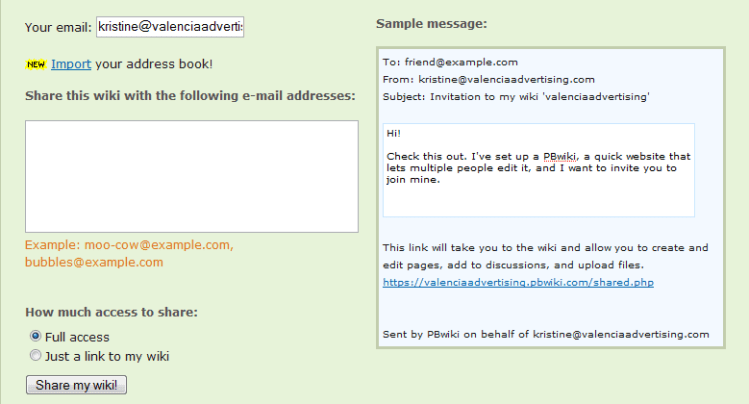
Click “Share this wiki” at the bottom of your wiki. You’ll be able to email large amounts of users, including directly from your web-based address book (e.g., Gmail, Yahoo). Free wikis will send full access to invitees, while Premium users can select more granular levels of access controls.

Best practices for getting others to contribute to your wiki

When it comes to building a collaborative wiki, there are certain elements that significantly increase your chances for getting others to contribute to your wiki. Here are the PBwiki best practices for getting participants to be fully engaged in your wiki.

Avoid Blank-Page Syndrome: Pre-fill your wiki with content.
Most people get scared by blank pages. We call this “blank-page syndrome,” which causes users to flee and never return. There’s a way around this: Just add some content to your wiki before inviting users. Consider adding an “About Me” page, a “What’s this wiki about?” page, and a few more welcoming pages. Not only will this help new users get situated, it will help you get experience editing your new wiki. We find the learning curve of successful wiki editors to be about 12-15 minutes.

Make the front page a landing page for navigation.
Your front page should have a short explanation of the purpose of the wiki and links to appropriate pages, not one long scrolling page. This helps in two ways: First, users tend to get overwhelmed when they first come to a wiki, so this approach lightens up the content on the page and directs them to the next step. Second, if you get large amounts of users on one page, they won’t be able to edit it at once. With multiple pages, the chances of two people trying to edit a page at the same time is lower. So keep a short front page with links to other pages.

Give users something concrete to do.
One user, “Michelle,” had trouble getting co-workers to participate in her wiki for over a year. Then she changed her approach: She asked users to change one line of the Frontpage. Participation skyrocketed and continues to be strong a year later. Consider creating a soft request, like asking users to add their name or to fix a single spelling error on the wiki page. They’ll be much more likely to try editing if they have a small nugget to accomplish first.

Making logging in as easy as possible.
The problem is not access controls — it’s creating something compelling enough to get people to contribute to your community in the first place. Make your wiki easy to access and worry about access controls after getting a few regular participants. (If you absolutely need ironclad business security, we do offer the PBwiki Small Business Edition.)

Get everyone to participate.
When you start a new wiki, you’ll find that some people will cling to old methods of communication. For example, some of our users report that their co-workers continued emailing them or asking others to “please put this on the wiki.” When people email you, point them to the wiki. The beauty of PBwiki is that the most current information is always on the wiki, so direct them to your PBwiki URL and encourage them to add it themselves. After 2-3 reminders — and seeing their co-workers actively using it — they’ll be much more likely to contribute to your wiki.

Remind your users that it’s ok to play.
Your wiki users will be nervous the first time they come to PBwiki, wondering if they’re going to mess something up or cause an irreversible change. Assure them that it’s ok to edit pages — PBwiki automatically tracks changes and allows you to reverse changes, so they should feel free to edit an existing page or create a new page. In fact, one of your goals might be for each user to create their own page!

Make PBwiki part of your day.
One of our most successful wiki editors added “It’s on the wiki! http://wikiname.pbworks.com” to his email signature, instant-message window, and on his website. When users messaged him, it was the first thing they saw. Consider putting your daily schedule or important notices on your wiki. When others see it used regularly, they’ll buy in, too.

Adding interactive plugins to your wiki

Plugins allow you to add interactive widgets to your wiki like collaborative calendars, chat rooms, YouTube videos, photo shows, and more (full list here).

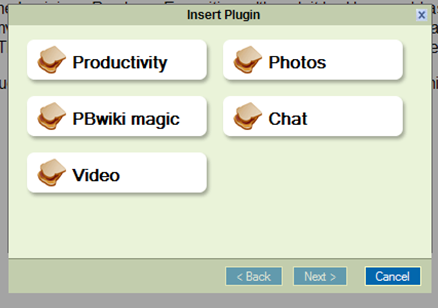
  • To add a plugin, click “Edit” on any page in your wiki.
  • Then click “Insert plugin” (the button with the funny-looking green icon).
  • Then move your mouse over the different categories to add a plugin.

insertplugin2-cropped.png

Bonus how-to videos: Insert voice chat, event planning, and general plugins (skip to 1:15).

101 ways to save time with a wiki! #3 Instant Meeting!

Whether its a small team meeting or a huge 1,000 person conference, it’s important to have a specific roadmap to guide your discussion. Having an agenda lets participants know where they’re headed, and keeps everyone on track.

PBwiki is an awesome way to engage all of your attendees and shape the message that both you AND your participants want to discuss.

Here’s how:
1) Create a provisional agenda on a wiki page – posting the the call-in number and meeting time
2) Invite your participants to post their meeting materials and edit agenda items
3) Keep an eye on the edits and make changes when necessary

The Leadership Learning Community is a great example of how a national meeting was developed using PBwiki. Check out there results here.

creating-space-wiki-agendacs8.png

As you can see the wiki agenda quickly becomes a dynamic, self organizing space where attendees can introduce discussion topics, decide how much time each topic receives and easily edit information as the meeting approaches.

During the meeting the online agenda can serve as a note-taking template, and when the meeting is completed, the notes are instantly available online. Everyone can review the agenda / meeting notes and provide feedback.

Why this saves time:

1) Don’t waste time emailing meeting minutes to people, or answering repetitive questions about discussion points, or dial-in numbers.

2) No need to collect meeting material – they’re on the wiki!

3) Wikis increase buy-in and participation in the meeting by involving the entire team in the planning stages.

101 ways to save time with a wiki! #2 – Notes, Notes, Notes!

When I was a student, I was a copious note taker. Where are those notes now? After moving from dorm to apartment to graduate school to San Francisco, those notes are nowhere to be found. Two hours of searching my parent’s attic I located my college photos, my old rice cooker, and several textbooks books. No notes.

Dustin at http://www.lifehack.org has a great idea – use your wiki for class notes. Here’s how:

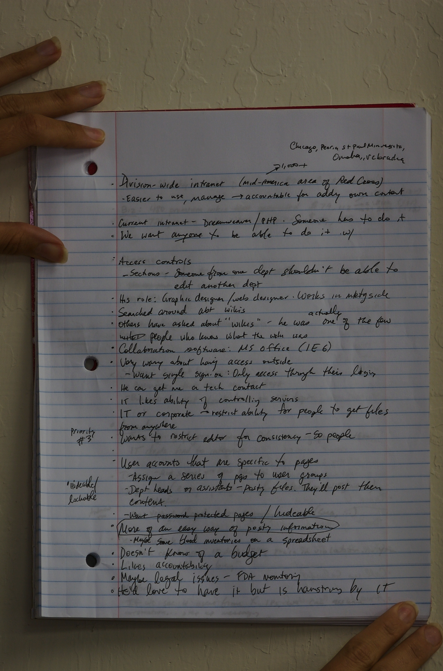
Instead of taking notes in class like this:

not_quite_so_large.png

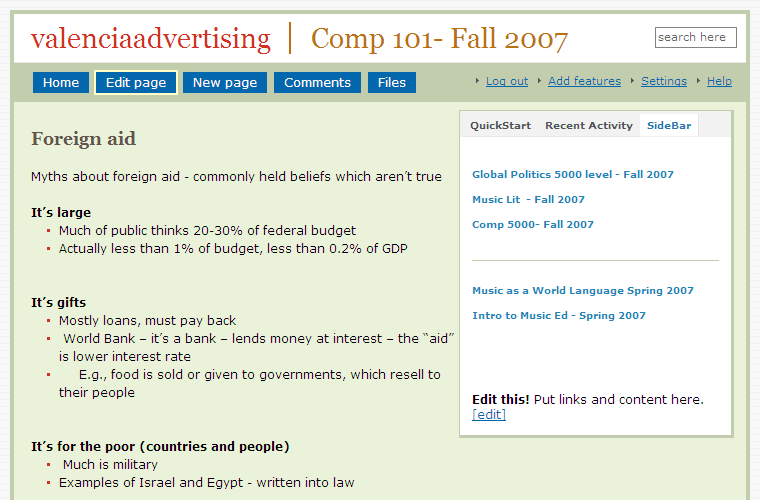
Transcribe your notes into your wiki (or, for those cutting edge individuals, take notes directly in your wiki).

valenciaadvertising-comp-101-fall-2007.png

Why this is an awesome idea that saves you time:

1) Fully legible – not only can you actually read your notes, but formatting with bullet points, bold lettering and headings helps to organize ideas.

2) Share – Easily share you notes with other classmates. Why bother heading to library to photocopy your notes or risk losing them when you lend them to someone? Simply direct people to your wiki page.

3) Link – Add links to relevant articles and websites to create a comprehensive study guide. Don’t try to compile information right before the exam, that’s when you should be chugging coffee and cramming.

3) Search – Locate all your information with the click of a search button. Can your Mead notepad do that? Not yet!

Check out the many other cool reasons you should use a wiki to take your notes on www.Lifehack.org

101 ways to save time with a wiki – #1 Post it!

I agree with you! It’s a huge pain to keep track of shared office documents. I am forced to figure out – does this document reflect the most recent changes? Was this version approved by the board? Has the team signed off on this document? Grr!

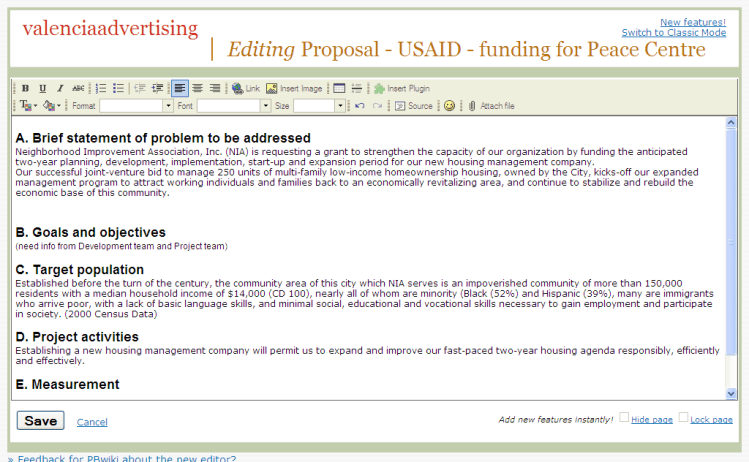
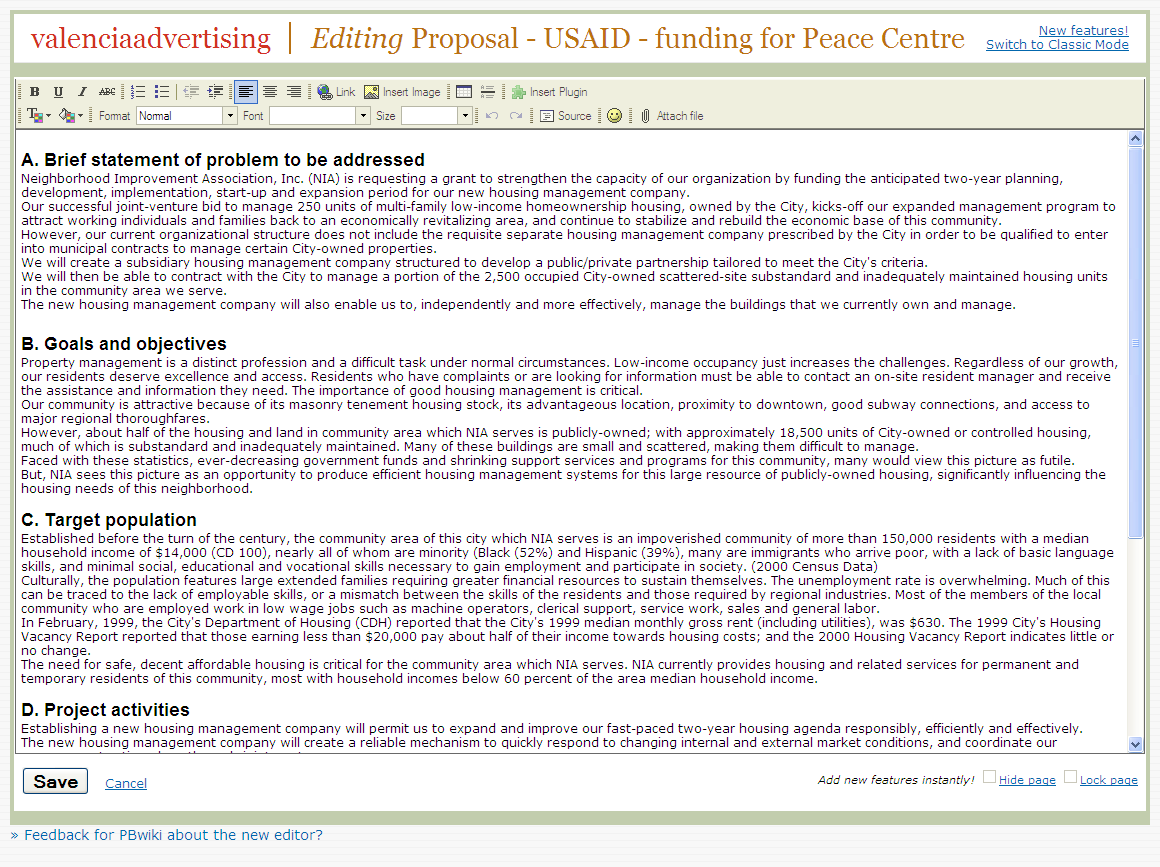
A wiki is a great way to cut down on that frustration. Here’s how I used my wiki to collaborate on my recent proposal for a city grant:

I started by posting the most recent revision of my grant on the wiki. To do this I just cut and pasted my original word document.

valenciaadvertising-editing.png

I invited others to collaborate on my project. It took my team a few weeks to get used to the idea that the document was always updated and always on the wiki. After a few weeks of responding to request for the documents with, “Check the Wiki!� everyone caught on.

features-pbwikicom.png

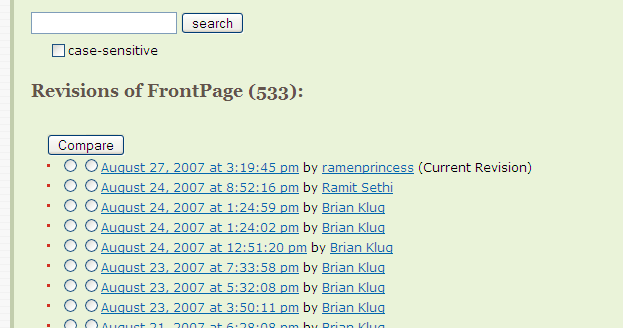
It’s easy to keep track of revisions. By checking the document history, I can see who made changes and when they were made.

track-changes.png

Rather than editing the document and emailing it to the team, I simply edit our shared wiki. Everyone receives notification that the wiki was updated and knows where to find the most recent copy. In the end my document was revised by three different departments, and I wasn’t wasting my time trying to keep track of every iteration. Fantastic!

valenciaadvertising-filled-out-editing.png

How this saved me time:

1) I no longer have to search through email to find the most recent document, or figure out what I named the most recent copy on my desktop – my most up to date work is always on the wiki.

2) Finding old copies of the same document is simple, they’re always saved in the revision history. Again no more searching through past email or copies saved on my desktop.

3) Instead of receiving tons emails with revised documents, I’m notified when a change takes place. It’s easy to track what was changed and who made the changes (Less email noise!)

15 educators respond: "How would you use PBwiki in your classroom?"

Yesterday, we posted feedback from educators called 10 reasons educators love us. Today, we’re posting feedback from superstar educator Kathleen Ferenz’s seminar on PBwiki. She asked the educators in her seminar…

“How would you use PBwiki?”

  • “I can see this as really useful for having students create and share book reviews.”
  • “Would want to redistribute this presentation to our region and the counties we service.”
  • “After fiddling around with wikis for awhile, I plan on implementing them into the curriculum.”
  • “I could use this at work as well as at home.”
  • “Helping teachers create them for their students, Book Reviews”

    There’s more!

  • “Daily in the library media center and in inservices.”
  • “I am definitely going back to start my library wiki tonight. IT’ll be ready to roll out when school starts next Monday.”
  • “After school programs, during library time.”
  • “Will set up a Wiki with the classes which I give orientation to, a poetry Wiki and a picture book Wiki.”
  • “I will definitely use it in all my computerized schools. I look forward to beginning by having 3rd graders share book reports on their pbwiki”

    …and still more ways educators would use PBwiki:

  • “After more thorough exploration of the wikis, I will most likely start having the students use the wiki that I create to post their research work and projects at the end of the semester.”
  • “I will definitely use the wiki with my class this year. I have already begun creating a wiki over the summer and plan to use my class as test bunnies this year.”
  • “I can use PBwiki as a resource which parents can access and also develop curriculum that I can use in the classroom with students.”
  • “After using the wiki wiki website for a couple of months I would like to use it with my students as another teaching method.”
  • “I would use the Wiki web pages to create pages for students to post their work right away and to do grades at home.”